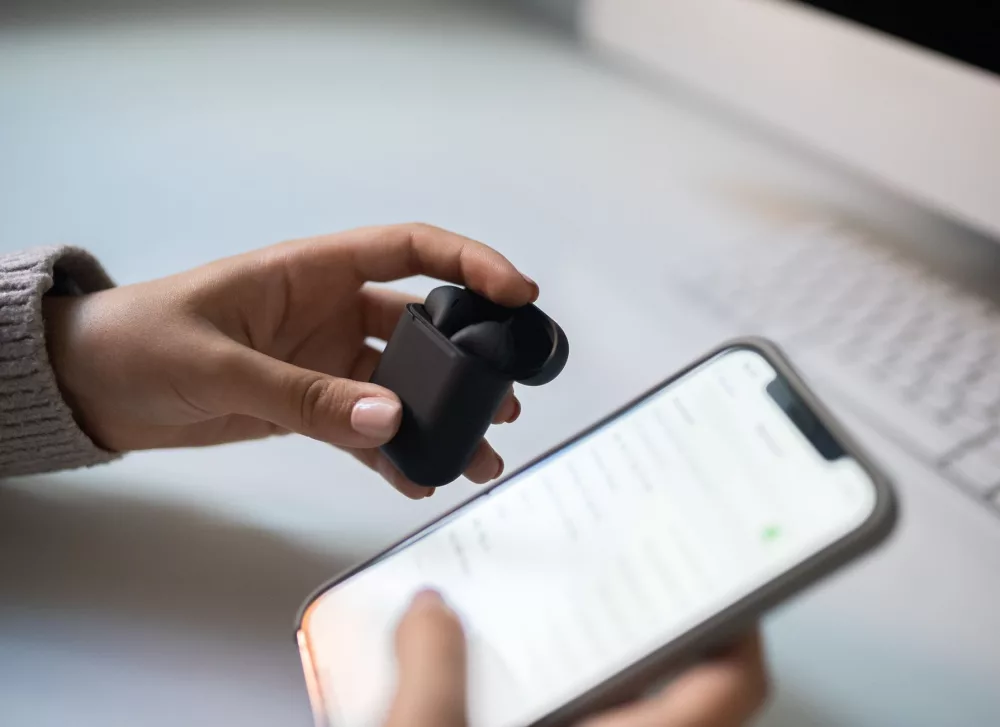
Hey there! If you've just unboxed some shiny new wireless earbuds or you're simply struggling to get your trusty pair to play nice with your phone, you've landed in the perfect spot. Connecting earbuds to your smartphone really should be a breeze, but sometimes, those little gadgets can throw a curveball. Don't worry, though; I'm going to walk you through every single step, making sure you can blast your favorite tunes or take those important calls without a hitch. We'll cover everything from the initial pairing to troubleshooting common hiccups. So, let's get those earbuds singing!
Understanding the Magic Behind Wireless Connections: Bluetooth
Before we dive into the nitty-gritty, let's quickly touch on what makes your earbuds talk to your phone. It's all thanks to Bluetooth technology. Think of Bluetooth as a tiny, invisible radio signal that creates a short-range connection between two devices. Your earbuds broadcast a signal, your phone listens, and once they shake hands, they're paired. It's pretty cool, and honestly, it's what gives us that amazing freedom from tangled wires.
Your Pre-Connection Checklist: What to Do Before Pairing
Alright, before we even think about touching your phone's settings, there are a couple of super important things you need to check off your list. Trust me, skipping these often leads to a lot of head-scratching later on!
- Charge 'Em Up! This might seem obvious, but you'd be surprised how many times I've seen people frustrated because their earbuds just won't connect, only to realize they're completely dead. Give both your earbuds and their charging case a good charge before you start. A low battery can sometimes prevent them from entering pairing mode or even showing up on your phone.
- Are They Out of the Case and Ready? Most wireless earbuds need to be taken out of their charging case to be discoverable. Some might require you to press a button on the case or the earbuds themselves to enter pairing mode. Check your earbud's instruction manual for the specific steps for your model.
- Bluetooth On Your Phone? This one's a classic! Make sure your phone's Bluetooth is actually switched on. We'll confirm this in the next steps, but it's always good to give it a quick glance.
- Any Old Connections? If you've previously paired your earbuds with another device (like a tablet or a laptop), they might be trying to connect to that old device. It's a good idea to turn off Bluetooth on any other nearby devices to avoid interference or unwanted connections.
Connecting Your Earbuds to an iPhone (iOS Devices)
If you're an Apple fan, connecting your earbuds is usually a pretty seamless experience. Here's how I do it:
Step 1: Open Your iPhone's Settings
Tap on the 'Settings' icon on your home screen. It's the one that looks like a gear.
Step 2: Navigate to Bluetooth
Inside Settings, you'll see a list of options. Look for 'Bluetooth' and give it a tap. You'll see a toggle switch at the top. Make sure it's green, indicating it's turned on. If it's not, just tap it to switch it on.
Step 3: Prepare Your Earbuds for Pairing
Now, this is where your earbud's specific instructions come in handy. For most earbuds, you'll need to either:
a) Take them out of their charging case.
b) Press and hold a button on one or both earbuds until you see a flashing light (often blue or white), which signifies they're in pairing mode.
c) Press a button on the charging case itself.
Once they're in pairing mode, they're actively looking for a phone to connect to.
Step 4: Select Your Earbuds from the List
On your iPhone's Bluetooth screen, under the 'OTHER DEVICES' section, you should soon see the name of your earbuds appear. It might take a few seconds, so be patient! When you see them, tap on their name. You might get a prompt to 'Pair' – just confirm it.
Step 5: Confirm the Connection
Once connected, the earbud's name will move from 'OTHER DEVICES' to 'MY DEVICES' and show 'Connected' next to it. You'll also likely hear an audio cue from your earbuds, like a chime or a voice saying 'Connected.' And just like that, you're good to go! Time to enjoy your audio.
Connecting Your Earbuds to an Android Phone
For my Android users, the process is very similar to iOS, with just a few minor differences in how you navigate the menus. Don't sweat it, though; it's still super easy.
Step 1: Access Your Phone's Settings
You can usually do this by swiping down from the top of your screen to open the Quick Settings panel and tapping the gear icon. Alternatively, find the 'Settings' app in your app drawer.
Step 2: Find the Bluetooth Option
In the Settings menu, you'll typically find 'Connected devices' or a similar option like 'Bluetooth & device connection.' Tap on that, and then select 'Bluetooth.' Make sure the toggle switch is in the 'On' position. If it's not, just tap it to enable Bluetooth.
Step 3: Put Your Earbuds in Pairing Mode
Just like with an iPhone, you need to tell your earbuds it's time to find a friend. Take them out of their case or follow your earbud's specific instructions for entering pairing mode (usually by pressing a button until a light flashes).
Step 4: Pair a New Device
On your Android phone's Bluetooth screen, you'll usually see an option like 'Pair new device' or a list of 'Available devices.' Tap on 'Pair new device' if you see it, or simply wait for your earbuds' name to appear in the list. Once it does, tap on it.
Step 5: Finalize the Connection
Your phone might ask you to confirm the pairing. Just tap 'Pair' or 'OK.' Once connected, your earbuds' name will move to the 'Currently connected devices' section, and you'll hear that sweet 'Connected' sound from your earbuds. Enjoy the wireless freedom!
What Even IS Pairing Mode, Anyway?
I know I've mentioned 'pairing mode' a few times, but what does it really mean? Essentially, when your earbuds are in pairing mode, they're broadcasting a special signal that other Bluetooth devices (like your phone) can detect. It's like them shouting,